
Publish to Community
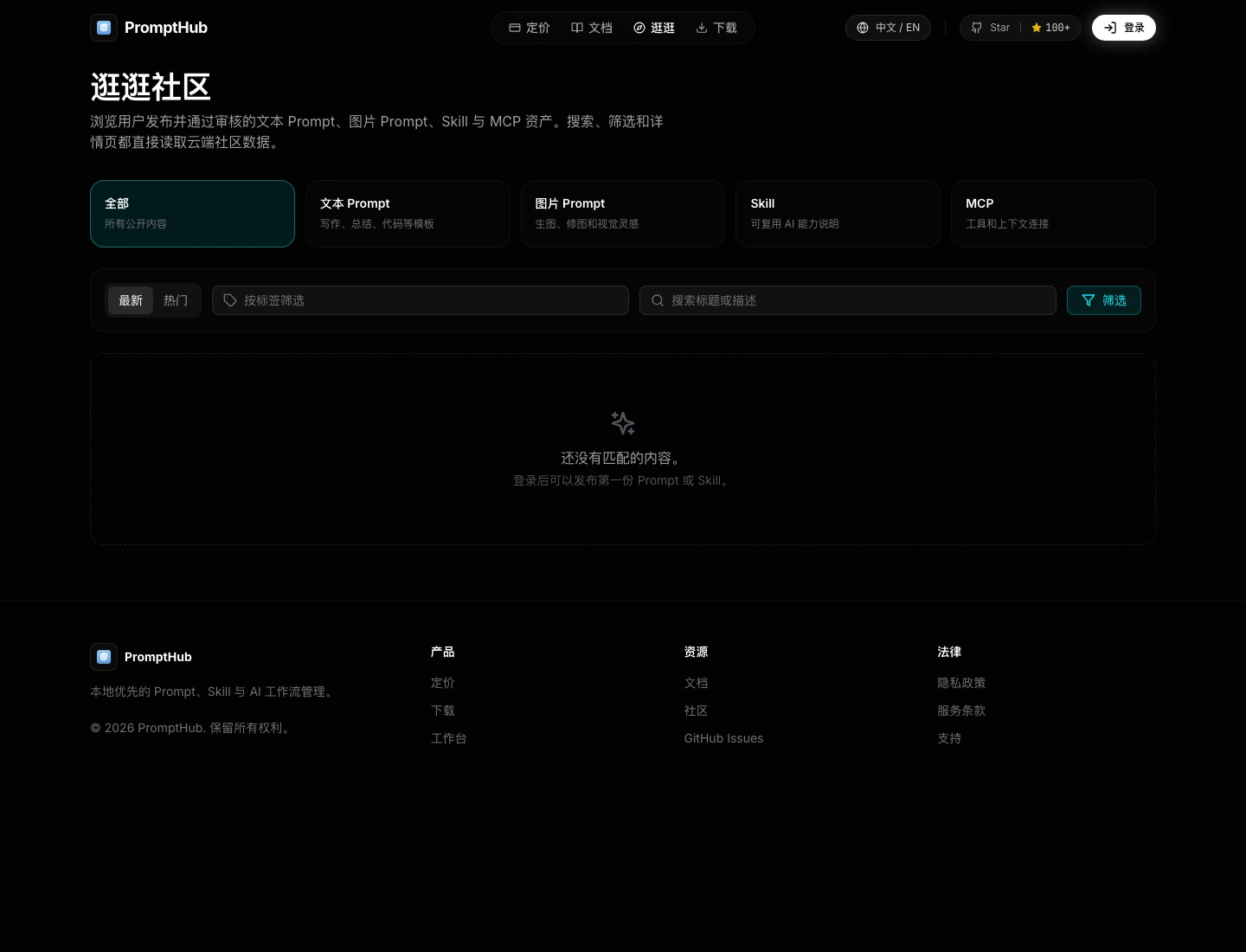
Publishing to Community should not mean pushing a draft straight to everyone. A better flow is: refine the item locally, add enough public-facing information for other users, then submit it for review. After approval, it appears in the right Explore Community section.
Choose the right type first
Section titled “Choose the right type first”Each content type lands in a different section. Choosing the right type makes the item easier to find and reuse.
| What you want to share | Where it appears | Check before publishing |
|---|---|---|
| Writing, summarizing, translation, review, or coding templates | Text Prompt | Inputs, outputs, variables, and sensitive details |
| Image generation, editing, covers, product shots, or visual style templates | Image Prompt | Cover image, preview image, subject, composition, and model differences |
SKILL.md capabilities for AI coding tools |
Skill | Target tool, inputs, outputs, limits, and safety notes |
If an item includes both text instructions and a visual result, publish it as an image prompt. Users will look at the image first, then decide whether the prompt is worth copying.
Publish a text prompt
Section titled “Publish a text prompt”Text prompts are best for clear repeatable writing or reasoning tasks.
- Confirm the prompt has been tested locally and is not a rough draft.
- Use a specific title, such as “Meeting notes cleanup” instead of “Universal assistant”.
- Write a one-sentence summary that says when to use it.
- Make inputs and outputs clear in the prompt body.
- Remove customer names, internal systems, credentials, private links, and chat history.
- Add useful tags, such as
writing,review,support, orcode. - Submit it and wait for review.
After approval, it appears in the text prompt section. If a risk is found later, the item may be hidden or archived.
Publish an image prompt
Section titled “Publish an image prompt”Image prompts need a visual proof point. Without a cover or preview image, other users cannot judge whether the prompt is useful.
- Check in your local gallery that the visual result is stable enough.
- Prepare a cover or preview image that represents the actual result.
- Use a title that describes the visual job, such as “E-commerce product hero image”.
- Write a short summary that explains what kind of image it creates.
- Include subject, background, camera, light, material, ratio, style, and constraints in the prompt body.
- If one model works better, mention the model and any adjustment notes.
- Remove unauthorized brand assets, portraits, client material, and internal project names.
- Submit it and wait for review.
Image prompt review focuses on whether the preview and prompt body match. A beautiful image is not enough if the prompt cannot be reused.
Publish a skill
Section titled “Publish a skill”Skills are public capability descriptions. Other users first read what the skill does, then decide whether to copy, adapt, or install it.
- Make sure
SKILL.mdcan stand alone without your chat history. - Use a title and summary that explain the problem it solves.
- Say which AI tool or workflow it fits.
- Describe inputs, outputs, and limits.
- Remove internal paths, client names, private repository URLs, credentials, and account details.
- If the skill asks AI to read files, run commands, or use external services, tell users to confirm permissions first.
- Submit it and wait for review.
Do not publish your internal team rules as-is. Turn them into a general version first.
What review checks
Section titled “What review checks”After submission, the item enters review. Review focuses on:
- Clear title, summary, and tags.
- Whether other users can understand and reuse the item.
- Whether an image prompt has a usable cover or preview image.
- Whether a skill explains target tools, inputs, outputs, and risks.
- Whether the content includes private data, secrets, internal material, copyright risk, or obvious misuse.
If an item is not approved, update it locally and submit again.
Maintain published content
Section titled “Maintain published content”Community content needs maintenance after it goes live. Check regularly whether:
- The summary is still accurate.
- Tags still help users find it.
- An image prompt cover still reflects the actual output.
- A skill still fits current tool behavior.
- The item should be hidden, removed, or archived.
Common mistakes
Section titled “Common mistakes”| Mistake | Better approach |
|---|---|
| Title says “Universal assistant” | Name the actual task, such as “Support reply rewrite” |
| Image prompt has no cover | Add a preview that reflects the real result |
| Skill includes absolute local paths | Replace them with general examples |
| Examples include client data | Use fictional examples or remove them |
| Body only lists keywords | Explain inputs, outputs, and constraints |