
Image Prompts
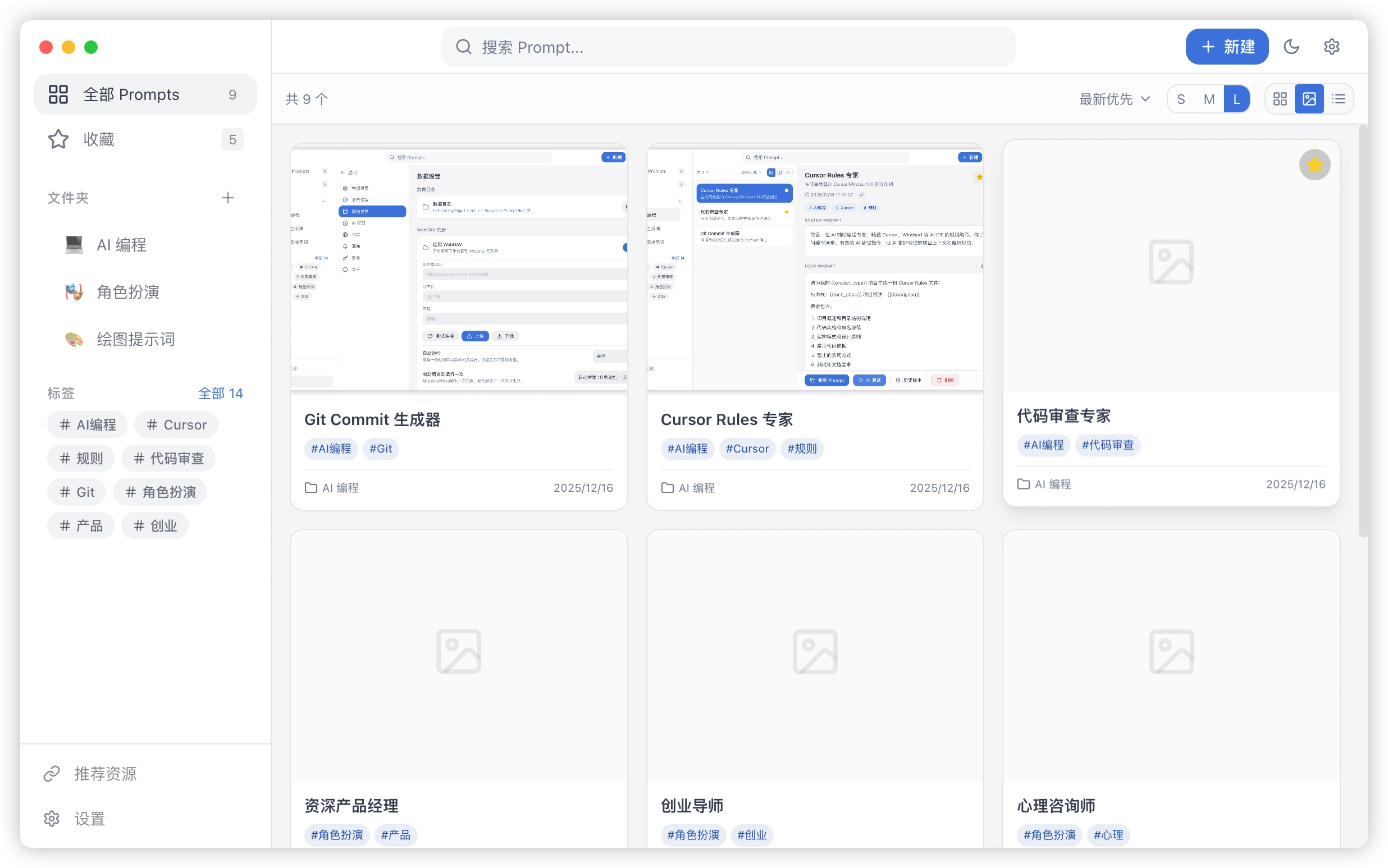
Image prompts help store and refine workflows for image generation, editing, and visual description. They share PromptHub’s folders, tags, search, and versioning model with text prompts.
In Explore Community, image prompts appear as their own image-sharing area so users can browse by visual intent instead of mixing them with text-only templates.
Capabilities
Section titled “Capabilities”- Store image-generation and image-editing prompts.
- Attach covers or reference images.
- Use vision models to reverse-engineer structured image prompts.
- Preview generated prompts before copying, editing, or saving.
- Validate image-related models in multi-model testing.
When to use an image prompt
Section titled “When to use an image prompt”Use an image prompt whenever the result is judged visually, not only by text quality.
| Scenario | What to record |
|---|---|
| Product image | Subject, material, background, lighting, camera, ratio, whitespace |
| Cover image | Title area, subject placement, color direction, text-safe space |
| Illustration | Character, action, scene, style, linework, texture |
| UI or poster | Layout, hierarchy, brand colors, composition limits |
| Image editing | Source issue, target change, and what must stay unchanged |
A prompt that only says “premium”, “cinematic”, or “tech style” is hard to reuse. Add the actual visual structure.
Workflow
Section titled “Workflow”- Open the image prompt reverse entry.
- Choose a reference image.
- Select a model with vision input support.
- Generate a structured prompt.
- Preview, copy, edit, or save it.
Images are sent to the selected model service. Remove sensitive material before testing.
Treat reverse output as a draft. Before saving it, check the subject, background, camera, lighting, ratio, style, and negative constraints.
How Image Prompts Differ
Section titled “How Image Prompts Differ”Text prompts mainly depend on wording and structure. Image prompts also depend on the visual result, so add:
- A cover or reference image.
- Style keywords.
- The model or tool where the prompt works well.
- Size, camera, material, lighting, or composition notes.
Organizing your library
Section titled “Organizing your library”Image prompts work best in gallery view.
- Use folders for brands, projects, or clients.
- Use tags such as
cover,product,poster, oricon. - Write a one-line summary explaining what the prompt generates.
- Keep the full prompt in the body, not only keywords.
- Keep stable versions so you can return to a result that worked.
If the same visual idea needs different model-specific versions, note the model and adjustment rules in the prompt body.
Sharing to Explore
Section titled “Sharing to Explore”When you publish an image prompt, it appears in the Image Prompt area of Explore. Users usually check the cover, summary, and tags before deciding whether to reuse it.
Before publishing, check:
- The title describes the visual use case.
- The summary explains what the prompt is good for.
- The cover or preview image matches the actual result.
- The body includes subject, composition, style, and output limits.
- There are no customer assets, private project names, secrets, or unlicensed materials.
When browsing community image prompts, copy promising items into your own library, adapt them, and test them with your own image model before relying on them.
Evaluating a Community Image Prompt
Section titled “Evaluating a Community Image Prompt”Do not judge only by whether the preview looks attractive. Check whether:
- The visual direction matches your goal.
- The body is specific enough to change subject, color, or ratio.
- The author names relevant model or tool assumptions.
- The intended use is clear, such as a cover, product image, illustration, or character.
- The content creates copyright, portrait, or brand risk.
Safety Notes
Section titled “Safety Notes”- Reference images are sent to the vision provider you select.
- Confirm permission before using faces, customer materials, or copyrighted work.
- Reverse-engineered text is a draft and needs human review.
- Remove internal project names, account details, and source notes before publishing.