
Core Features
PromptHub is a personal AI asset vault and Agent workspace. It keeps prompts, skills, rules, MCP entries, plugins, model configuration, and project assets together so you can search, edit, test, back up, sync, and distribute them by Agent or project.
If you are new to PromptHub, begin with Quick Start, then use this page to choose the area you need.
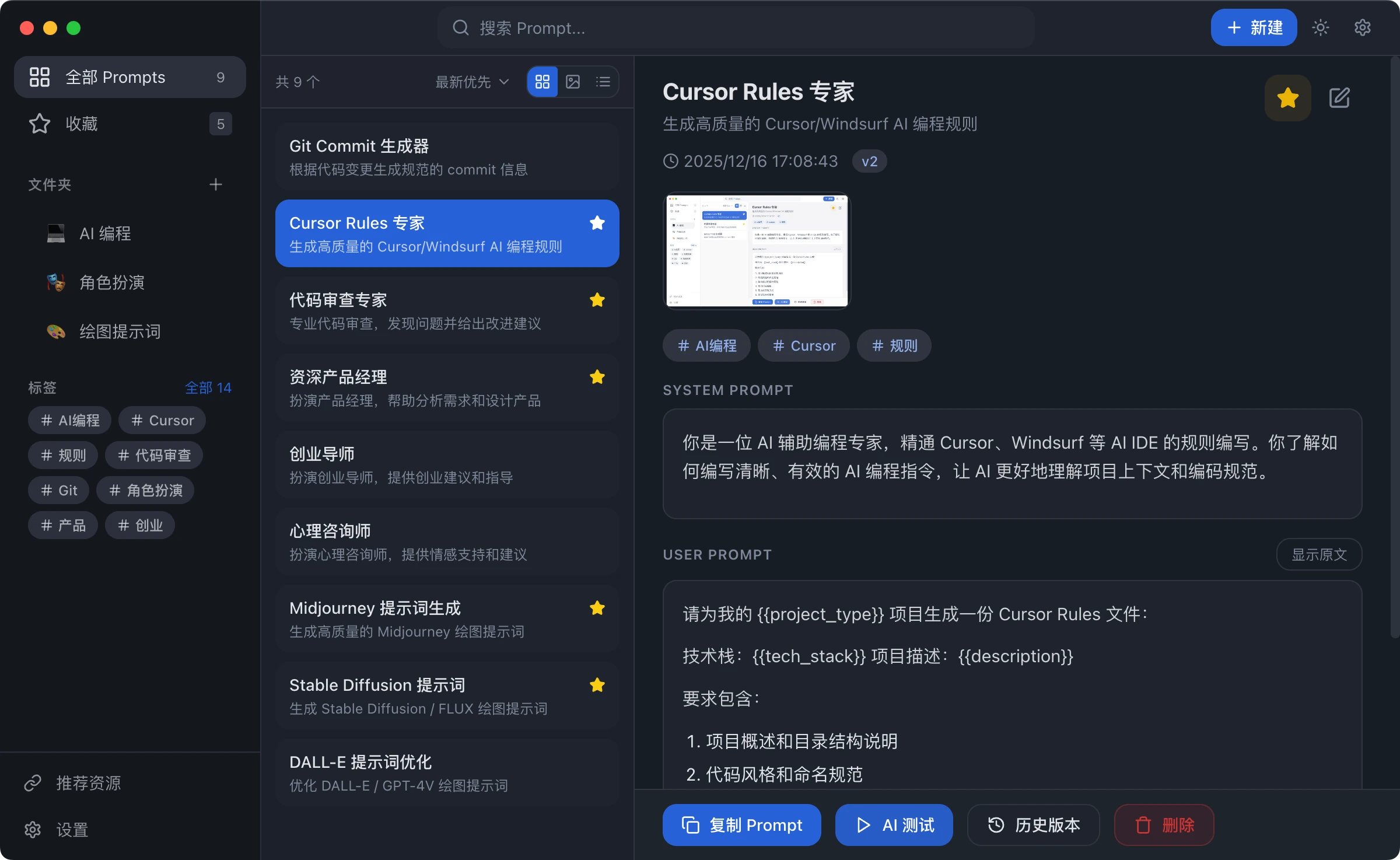
Agent Asset Management
Section titled “Agent Asset Management”The Agent area organizes AI assets around the environment that uses them. An Agent can expose its root directory, skills, rules, MCP entries, plugins, model configuration, and project files. Supported assets can be inspected, edited, or distributed; planned and unsupported boundaries remain visible.
You can:
- Review enabled Agents, installation state, and workspace paths.
- Scan local Agent directories and import existing assets.
- Open skill, rule, MCP, plugin, and configuration entries for an Agent.
- Manage supported model and provider configuration.
- Distribute reusable assets to more than one Agent tool.
Agent adapters expand by platform. A planned item does not mean the Web workspace can already edit the underlying file.
Prompt Management
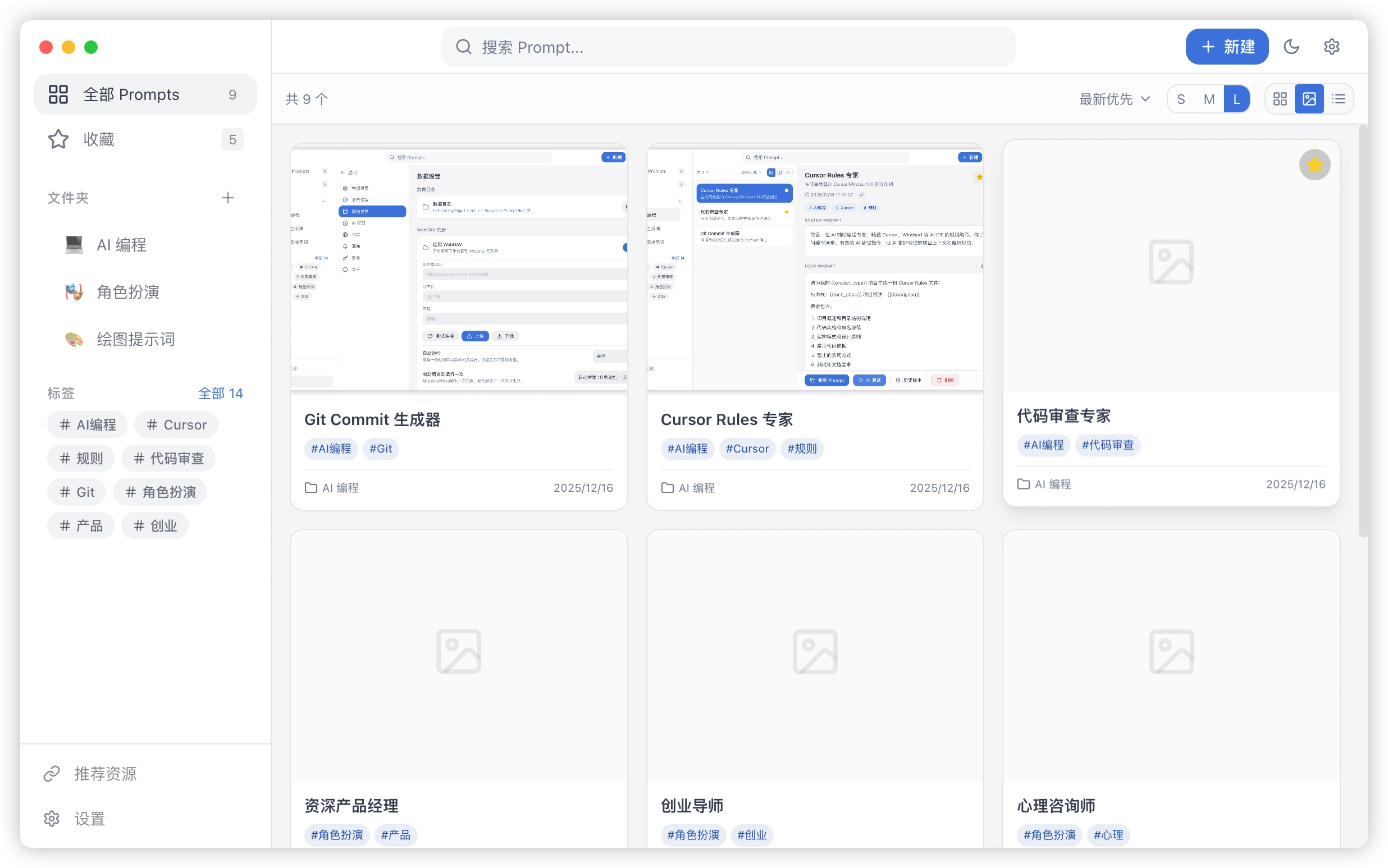
Section titled “Prompt Management”The Prompt area stores repeatable templates for writing, translation, review, analysis, support, code, and image workflows.
You can:
- Create, edit, and duplicate prompts.
- Organize them with folders and tags.
- Switch between card, gallery, and list views.
- Search titles, content, and tags.
- Review versions, compare changes, and roll back when needed.
- Turn changing values into variables that are filled at use time.
Continue with:
Skill Management
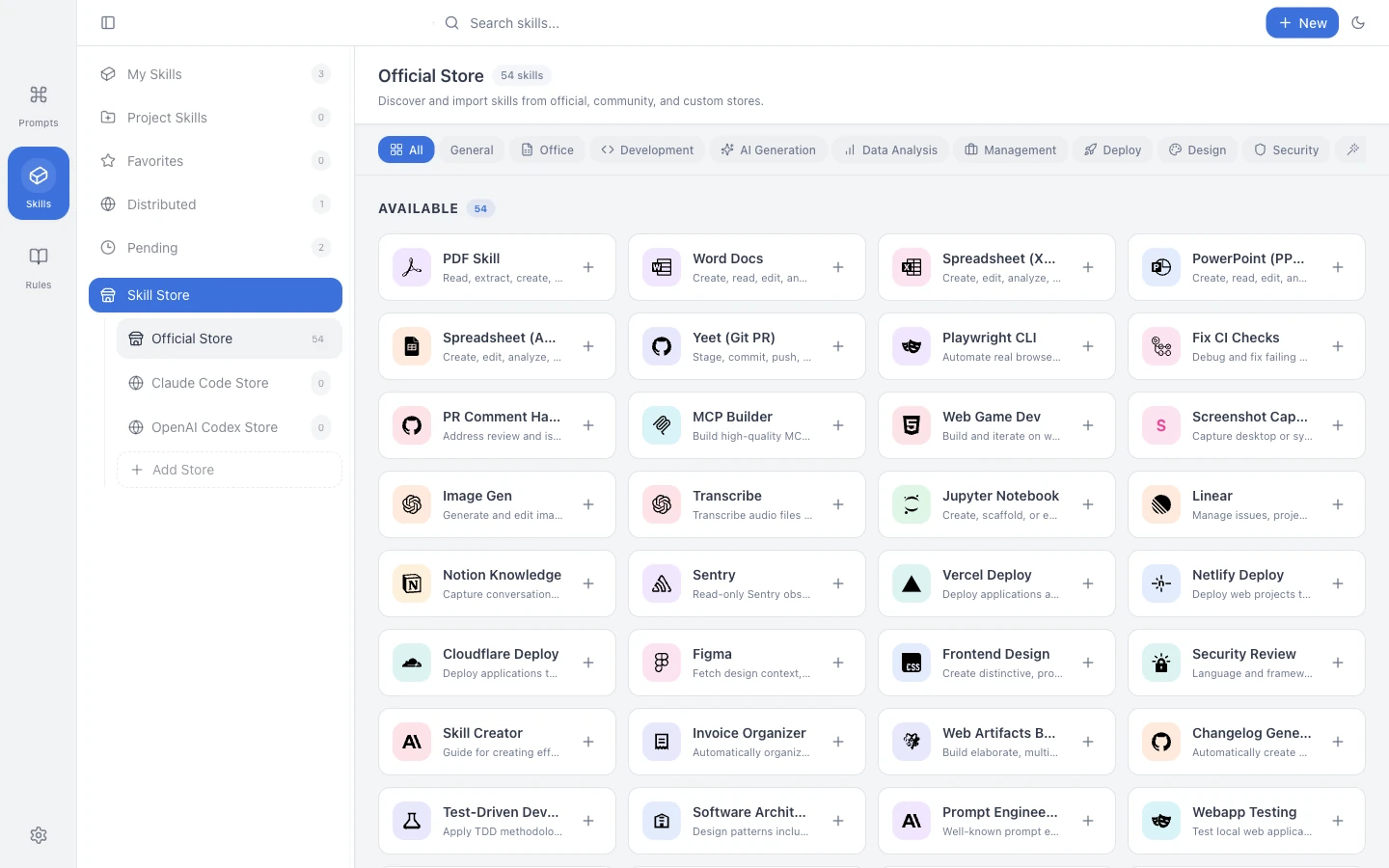
Section titled “Skill Management”The Skill area manages SKILL.md packages. A Skill is a reusable set of instructions for an AI coding tool, such as how to review code, prepare a release, or maintain documentation.
You can:
- Browse curated skills and configured stores.
- Import existing local
SKILL.mdfiles. - Install skills into supported AI coding tools.
- Tag, filter, and search your library.
- Generate a side-by-side translation when reading another language.
- Move skills between a personal library and project directories.
Continue with:
Rules Management
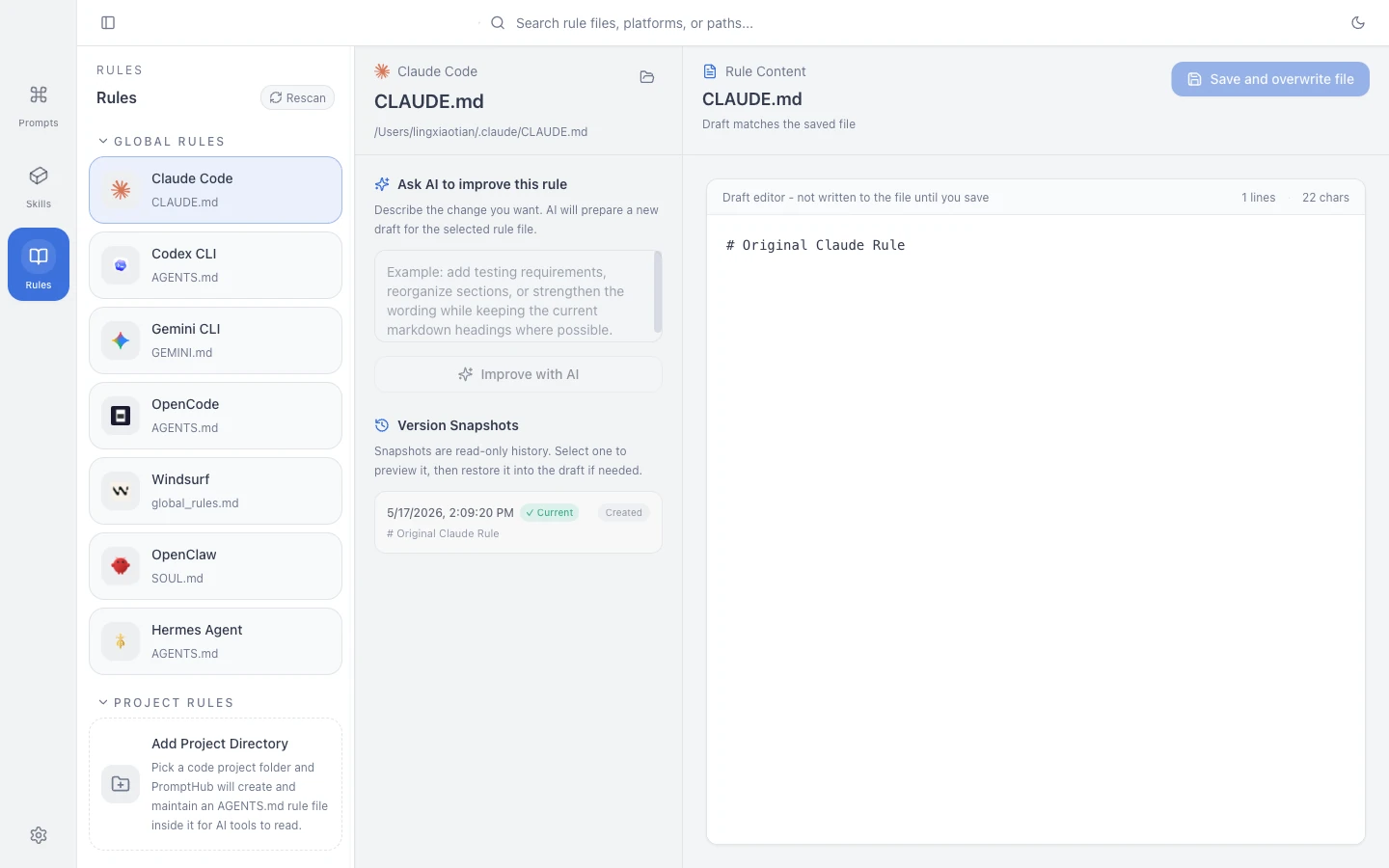
Section titled “Rules Management”The Rules area manages instruction files read by AI coding tools, including AGENTS.md, CLAUDE.md, and GEMINI.md.
You can:
- Browse global and project rules.
- Search rule content.
- Edit a draft and save it to a supported target.
- Create and review history snapshots.
- Restore content from history.
- Ask an AI model to reorganize a rule, then review the result before saving.
Continue with Rules Workspace.
Explore Community
Section titled “Explore Community”Explore helps you find public text prompts, image prompts, skills, rule-tagged resources, and curated MCP entries. Reuse public content as a starting point, then review and adapt it for your own workflow.
You can:
- Browse public prompts, image prompts, skills, and MCP entries.
- Filter by type, tag, popularity, or update time.
- Search for a specific workflow.
- Submit your own prompt or skill and wait for moderation before it appears publicly.
Continue with:
Account & Sync
Section titled “Account & Sync”Accounts are for hosted capabilities such as cloud assets, device sync, community publishing, and team features when they are enabled. The desktop app remains useful without signing in.
Depending on the current client and plan, you can:
- Sign in and manage hosted assets.
- Sync supported data between devices.
- Back up important prompts and skills.
- Use enabled team and sharing capabilities.
- Review plan, capacity, and usage limits.
Continue with:
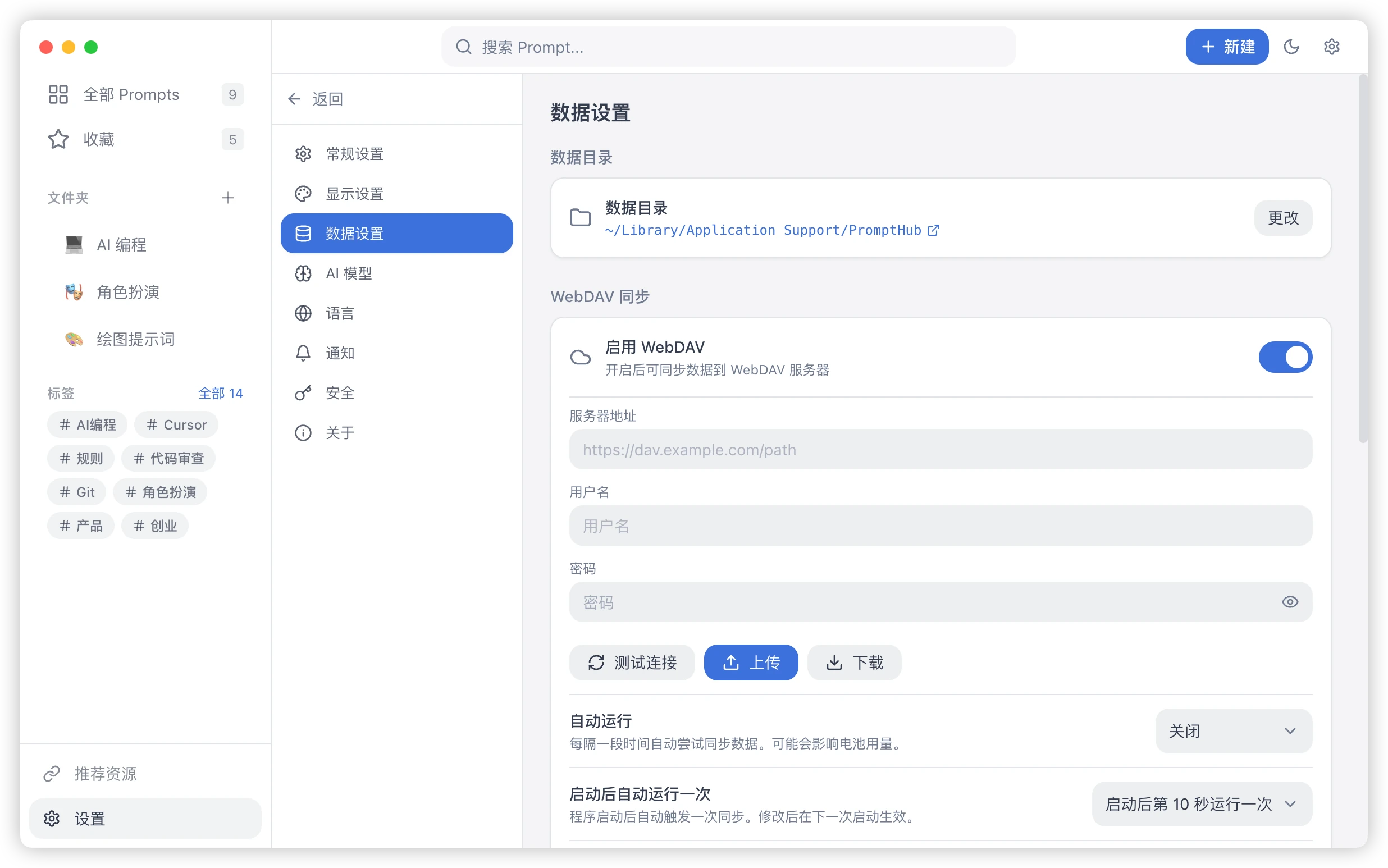
Settings
Section titled “Settings”Settings control application behavior and optional AI features.
- AI models: add credentials and choose the default model for testing, translation, vision, or image workflows.
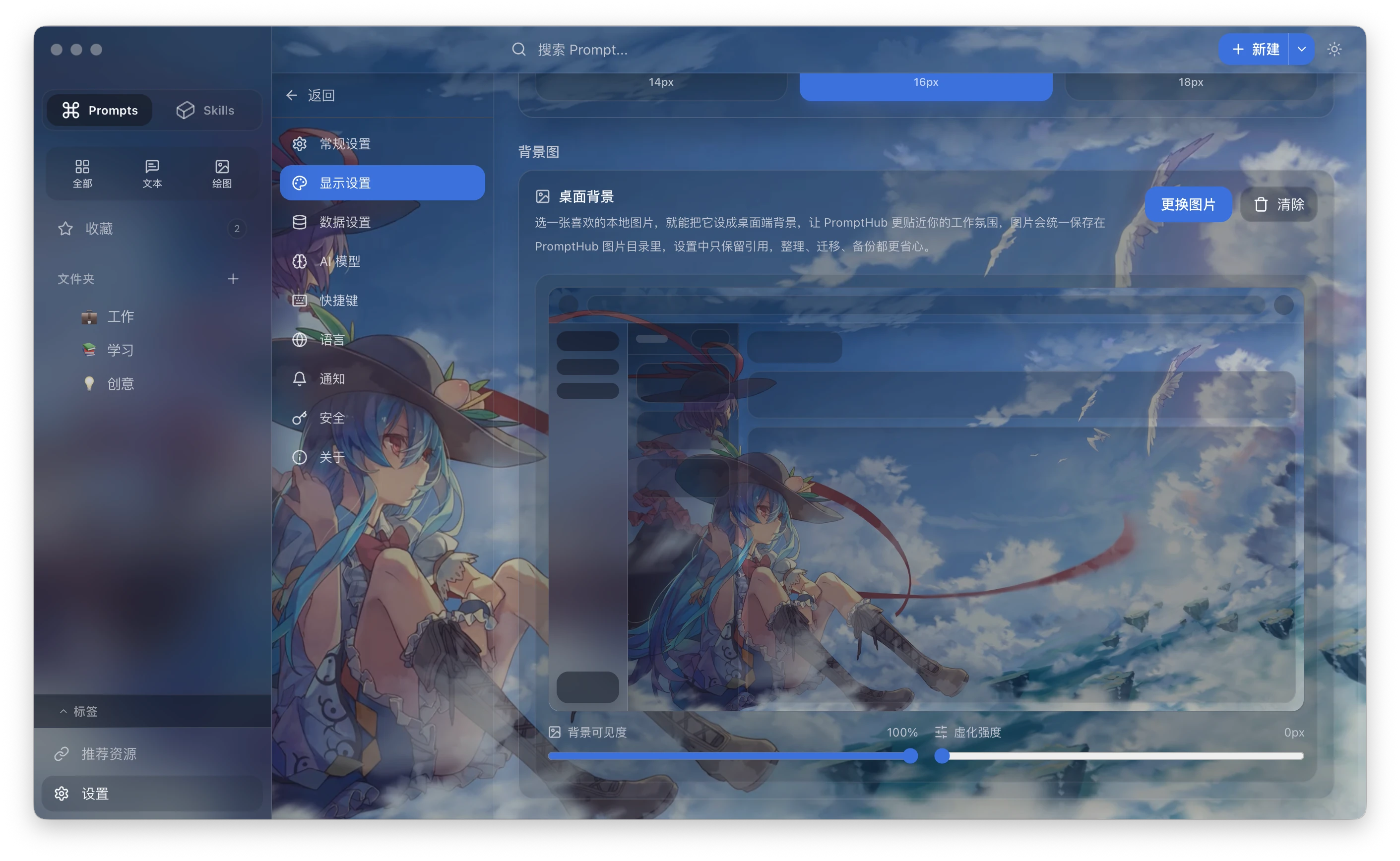
- Appearance and shortcuts: choose a theme, background, text size, motion, and common shortcuts.
- Privacy and security: understand what stays local and which actions send data to another service.
Continue with:
Advanced Use
Section titled “Advanced Use”After you are comfortable with the desktop app, continue with: