Quick Start
This guide walks through the smallest useful workflow: save a prompt or skill in your AI asset vault, organize it around an Agent or project, and find it again without searching through chat history or folders.
1. Install & Launch
Section titled “1. Install & Launch”Download and install the app for your OS. You’ll see a clean workspace on first launch.
- macOS: Download DMG and drag to Applications.
- Windows: Run the installer.
2. Visual Management
Section titled “2. Visual Management”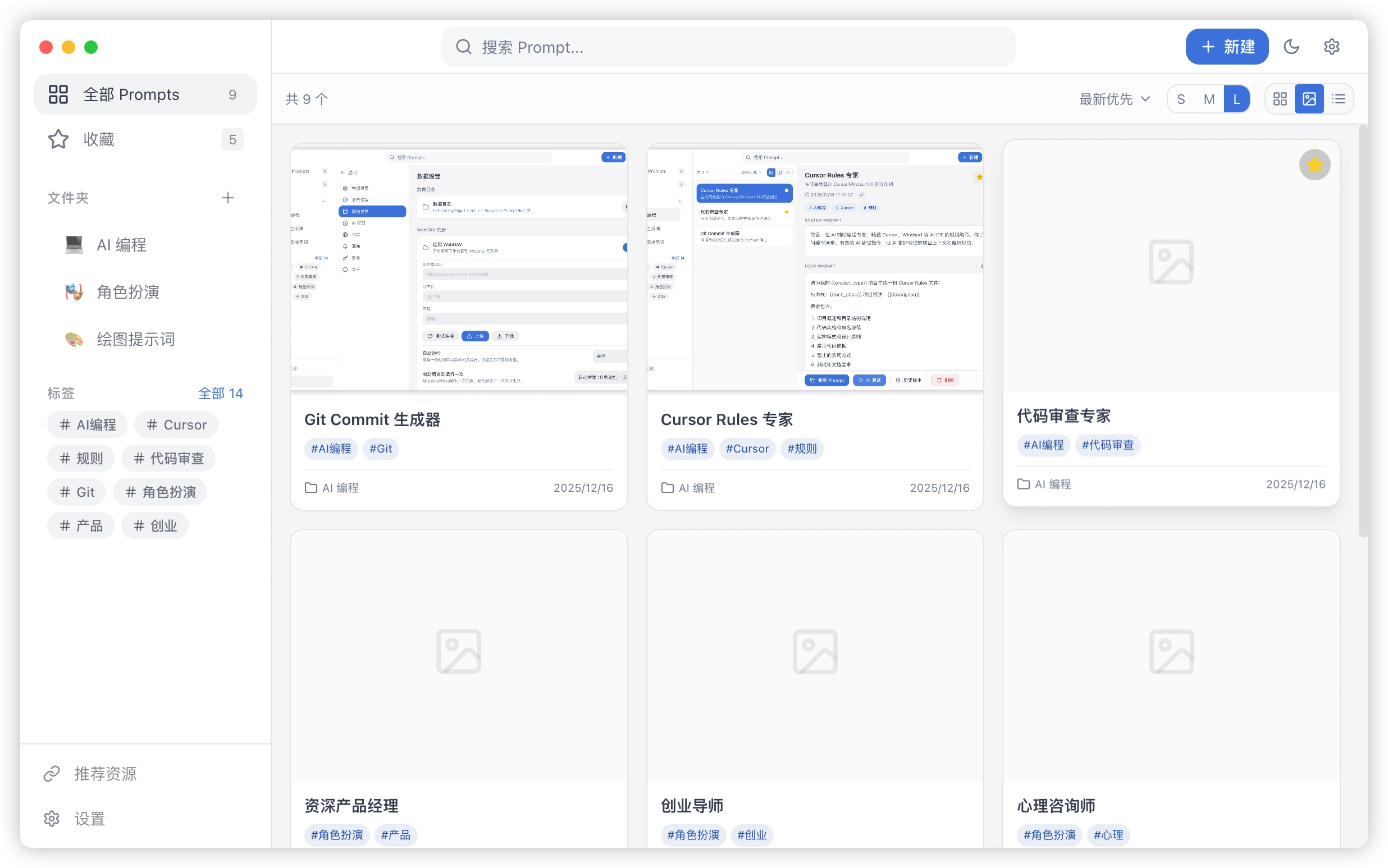
PromptHub defaults to Gallery Mode, allowing you to find AI assets at a glance with visual cards. You can also switch to list view in the top right for bulk actions.
3. Create Your First AI Asset
Section titled “3. Create Your First AI Asset”- Click “+ New” in the top right and choose Prompt or Skill.
- Enter a title and write the prompt, skill instructions, or rule content.
- Try using
{{variable}}syntax in prompts; it becomes a fillable form after saving. - Press
Cmd/Ctrl + Sto save instantly.
4. Variables & Usage
Section titled “4. Variables & Usage”In the prompt details, click “Copy Prompt” at the bottom. If variables are present, you’ll be prompted to fill them. Skills and rules can then be associated with the relevant Agent or project workspace.
5. Essential Shortcuts
Section titled “5. Essential Shortcuts”We’ve streamlined the most useful operations:
| Shortcut | Action |
|---|---|
Alt + Shift + P |
Show / Hide Window |
Alt + Shift + N |
Create New Prompt |
Cmd/Ctrl + F |
Global Full-Text Search |
Cmd/Ctrl + Enter |
Save & Close Editor |